

The editor's sidebar
The flow editor's VecFlow tab: the Flow panel with its bake buttons and problems, the Values panel, and the Event panel where operators are added, ordered and set.
In the flow editor, press N for the sidebar and pick its VecFlow tab. It has three panels. Most of the work happens in the last one, Event.
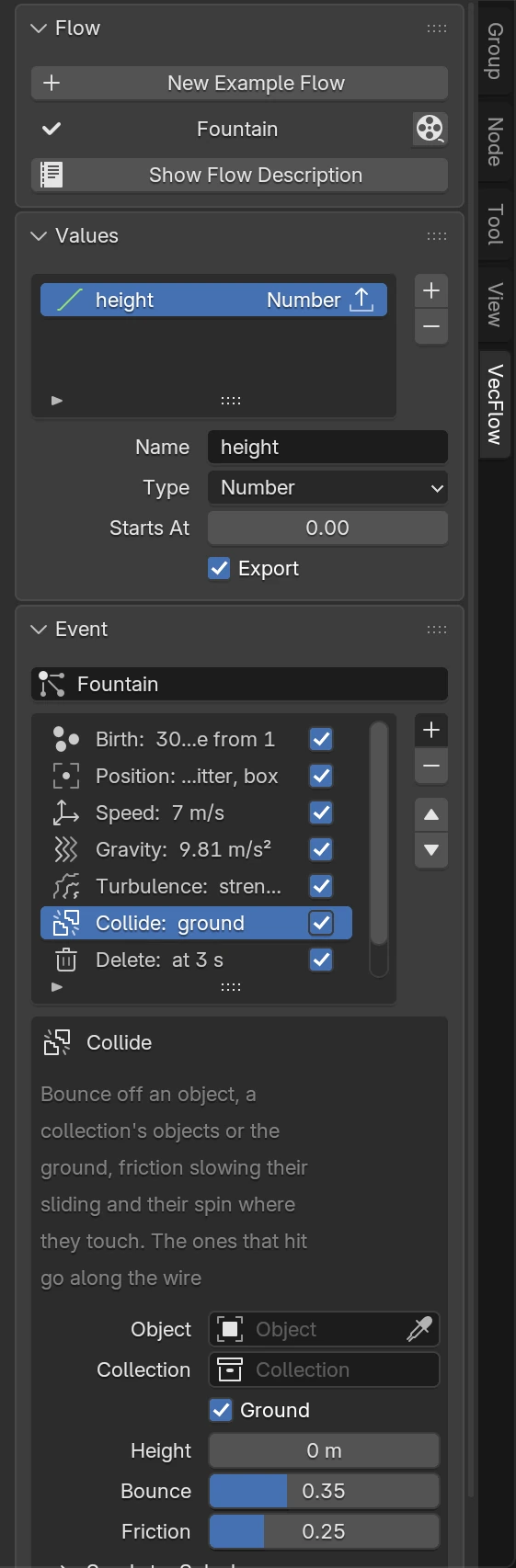
Flow
The flow as a whole.
- New Example Flow makes a new flow, the Fountain's three events, and shows it in this editor. Pick it in a simulation's Flow field to use it.
- The simulations using this flow, one row each: its name (click it to select it), an icon for where its bake stands, and its Bake button, as in Simulations in the Scene. With none, it says “No particles object uses this flow”: pick the flow in a particles object's Flow field.
- The flow's problems. Errors in red stop a bake; warnings don't. They're checked as the first simulation using the flow would bake it.
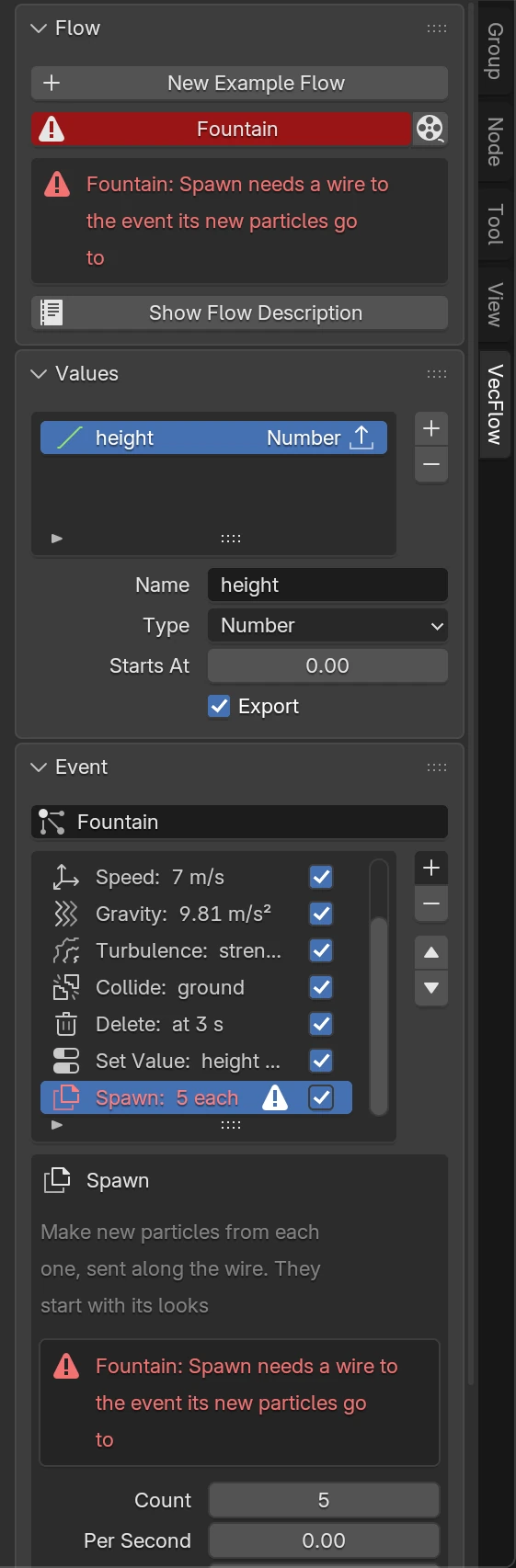
- Show Flow Description writes what the engine would be given into a text block called VecFlow flow.json: open it in a Text Editor to read. Its problems go to the status bar too. It's useful for checking a flow by eye, and for a bug report.
Values
Folded away at first. The values each particle of this flow carries: a list with + and −, and the selected value's Name, Type, Starts At and Export. See Values.
Event
The selected event: click a node, or an operator's row on a node.
- Its name, at the top. Rename the event here.
- Its problems that aren't about one operator, such as “no particles are born or sent here”.
- The operator list, top to bottom as they run. Each row shows the operator and a few words on its settings, with a warning icon when it has a problem, and a checkbox to switch it off.
- Beside the list:
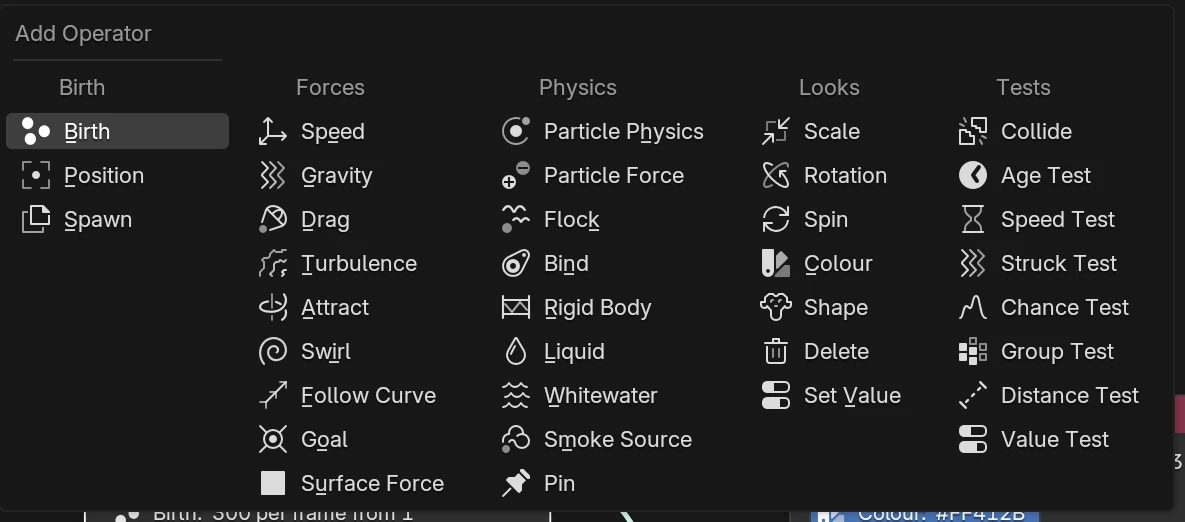
- + opens the Add Operator menu. The new operator goes below the selected one.
- − removes the selected operator, with its wires and its keyframes.
- ▲ ▼ move it up and down the stack. Its keyframes move with it.
Under the list, a box for the selected operator:
- its name and what it does;
- its problems, if any;
- its settings. Only those that matter with the others as they are show: pick Fill in a Birth's Mode and Velocity appears. Each operator's page says when each setting shows.
- Influence, for the operators a value can weigh: see Values;
- where its wire goes: Sends to: Splash, or what happens without one: “Not wired: matching particles stay” for a test, “Not wired: makes nothing” for Spawn, “Not wired: particles losing a bind stay” for Bind. Whitewater shows a line for each of Spray, Foam and Bubbles: one with no wire is “not wired, not made”.
On the node
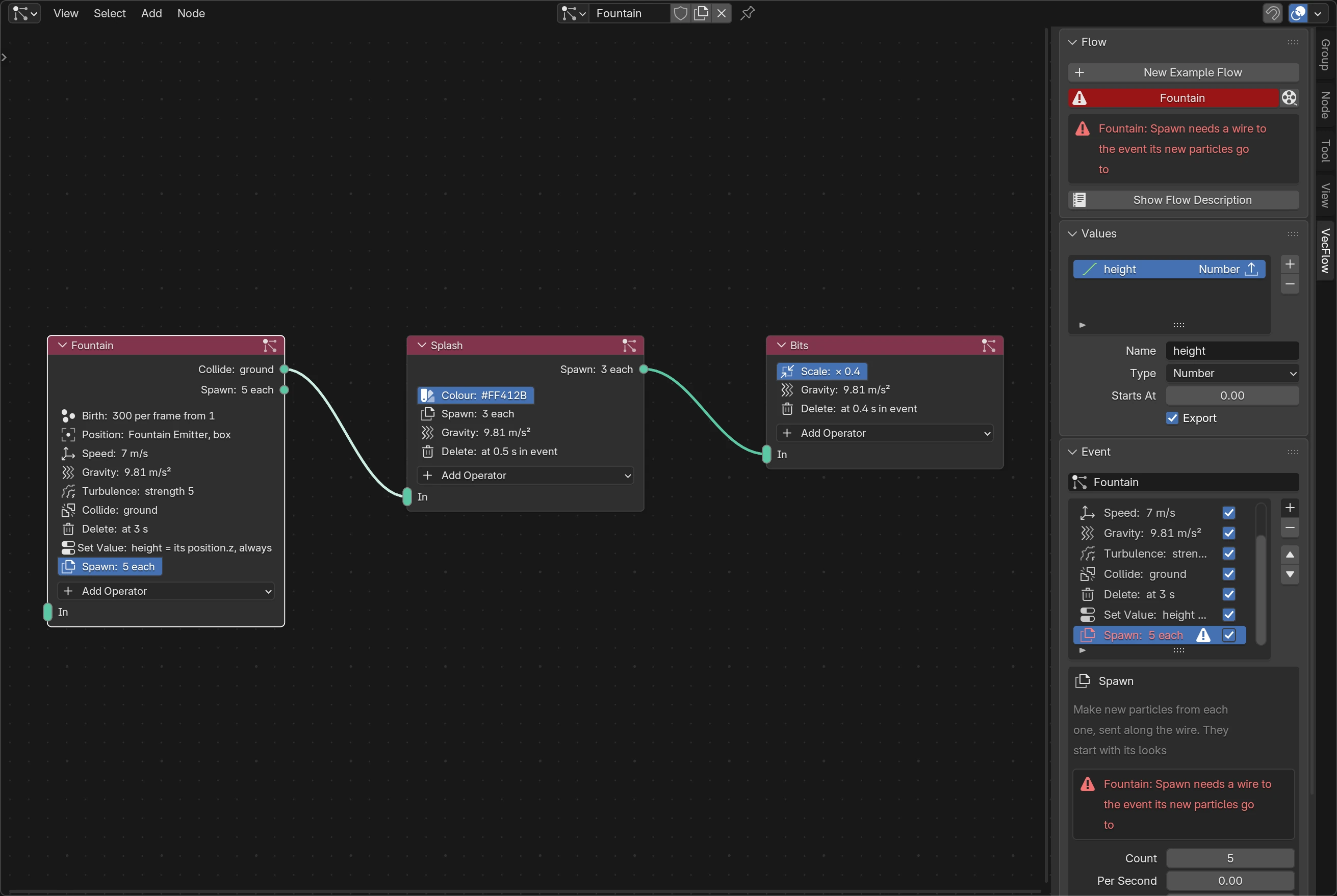
Each event node shows its operators as rows, with a dot of its own at the right for each one that sends particles on: drag from it to another event's input. Click a row to select that operator in the sidebar. The Add Operator button at the bottom opens the same menu as +.
ShiftA ▸ Event adds a new, empty event.
Related
Flows, events and operators
How a flow works: events that hold a stack of operators, particles going from one event to the next along wires, and the order things happen in each step.
How order and mixing matter
The rules of a flow: what order operators go in, what one event can hold, what can't share an event, and what works across events.