

A tour of the interface
Where VecFlow is in Blender: the sidebar tab and its panels, the Add menu, the Fracture tool, the flow editor and the status bar.
VecFlow lives in five places in Blender. Most of the time you'll be in the first: the VecFlow tab of the 3D Viewport's sidebar.
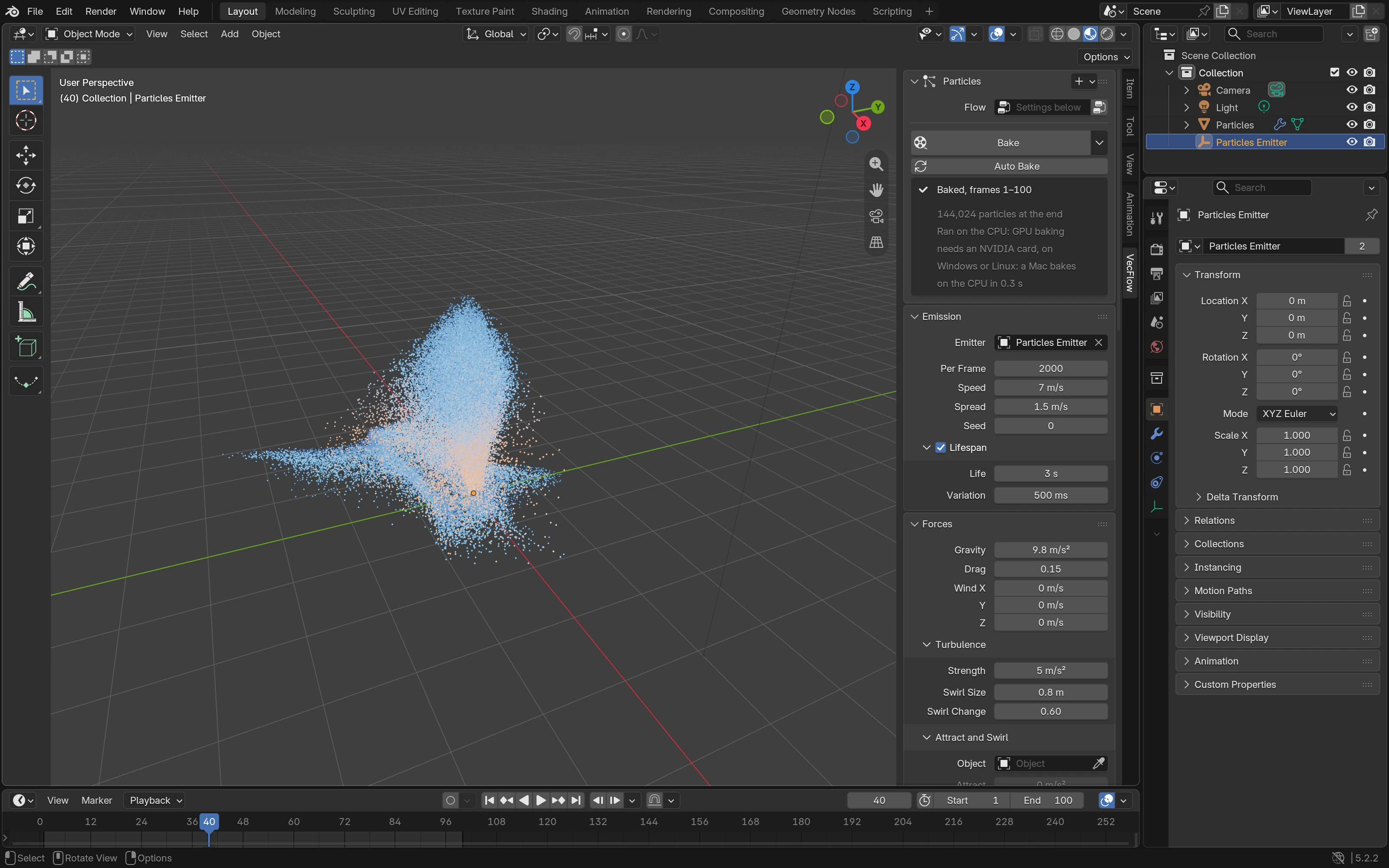
The sidebar's VecFlow tab
In the 3D Viewport, press N to open the sidebar and pick the VecFlow tab. It shows the simulation of the selected object: the particles object, or its emitter. The panels change with what that simulation has.
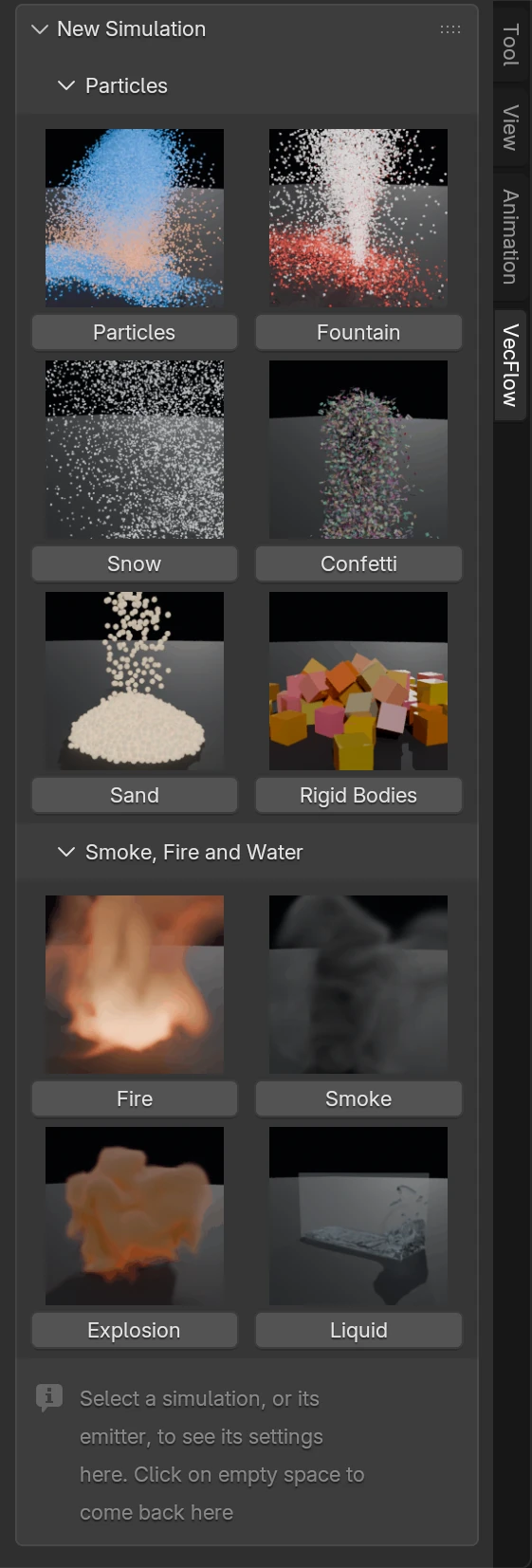
With nothing selected (click on empty space), the tab shows New Simulation: picture cards of the starters, in fold-away groups. With a mesh selected, the starters made from a mesh come first, under From “mesh name”.
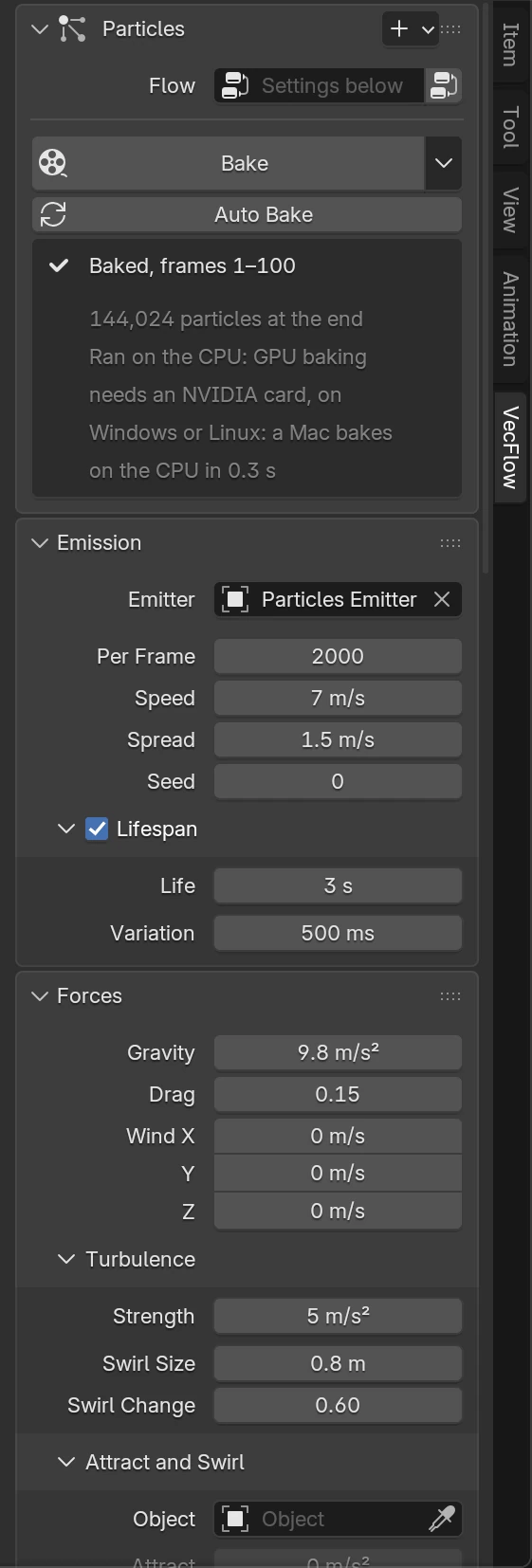
With a simulation selected, the panels are, from the top:
| Panel | Shows | When |
|---|---|---|
| The simulation's panel | Headed by its name, with a + for New Simulation. The Flow field with Convert to Flow or Edit Flow; Seed and the problems box with a flow; the Bake button and its menu; Auto Bake and Draft; the status box: where the bake stands, the particle count, where it ran and how long it took; Continue and Re-bake From | Always |
| Emission | Where particles are born, how many, how fast, how long they live | Without a flow |
| Forces | Gravity, drag, wind, turbulence, a force object | Without a flow |
| Collisions | The ground, collider objects, particles bumping into each other | Without a flow |
| Size, Spin and Colour | Scale, rotation, spin and colour | Without a flow |
| Smoke and Fire | How the gas rises, cools, burns and swirls; its render look | When the flow has a Smoke Source |
| Liquid | The liquid's surface mesh, its render look, whitewater | When the flow has a Liquid |
| Display | Shapes, sphere size, viewport share, trails, render multiply, playback time; nothing here needs a new bake | Always |
| Bake Settings | CPU or GPU, substeps, state saves, background bakes, the cache folder, Collect for Render | Always, folded away |
| Values at This Frame | The lowest, mean and highest of each exported value | When the bake has values |
| Simulations in the Scene | Every simulation in the scene, its status and Bake button; Bake All | When the scene has one |
The four panels of simple settings (Emission, Forces, Collisions, and Size, Spin and Colour) hide once a simulation has a flow: the flow does their job then.
The Add menu
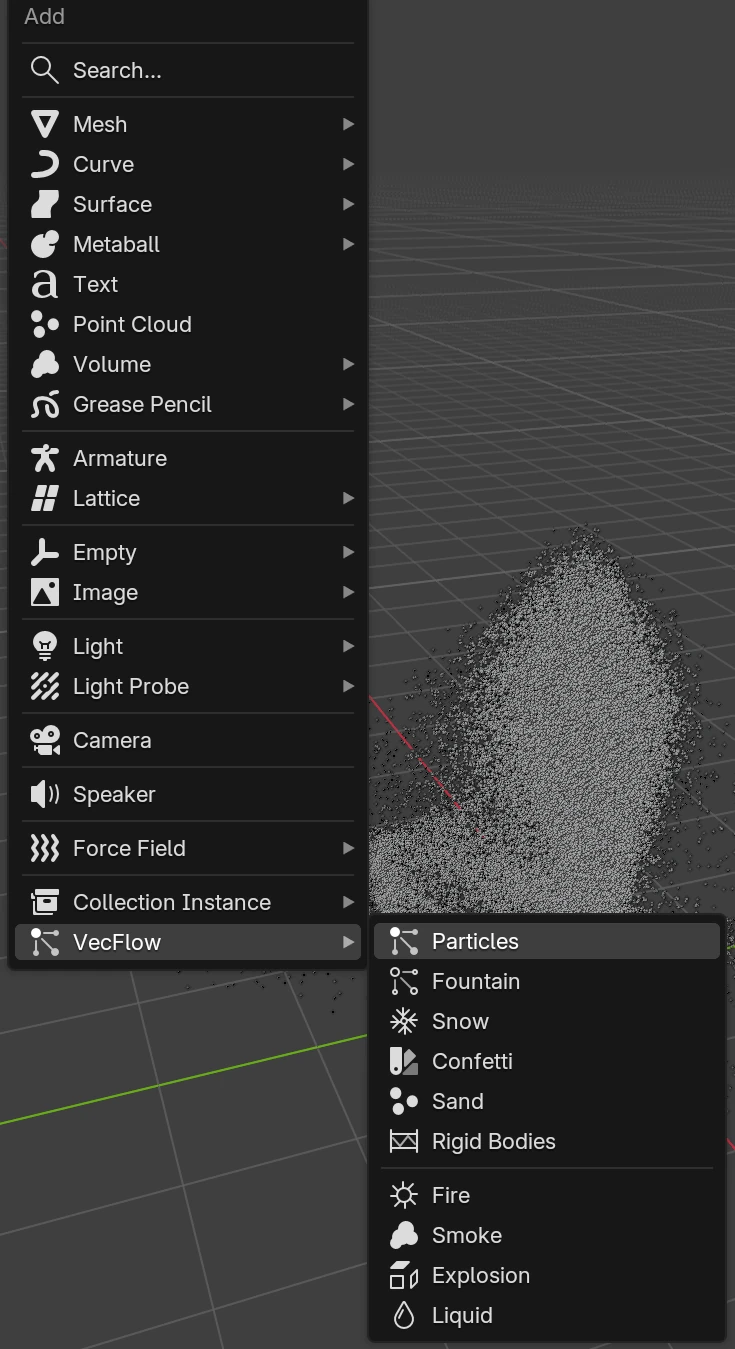
In the 3D Viewport, ShiftA (or the Add menu in the header) has a VecFlow entry with every starter: the Particles group, then Smoke, Fire and Water. With a mesh active, the starters made from it follow, named after it: Emit Particles From “Cube”, Set on Fire From “Cube” and so on.
A starter is made at the 3D cursor.
The Fracture tool
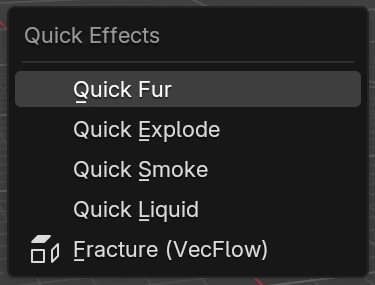
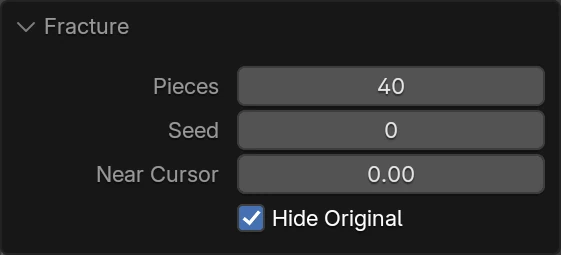
ObjectQuick EffectsFracture (VecFlow) cuts the active mesh into pieces that lie flush, as a new object, and hides the original. Its settings (Pieces, Seed, Near Cursor, Hide Original) are in the adjust-last-operation panel at the bottom left of the viewport. The Shatter starter uses it to make glued pieces that break apart.
The flow editor
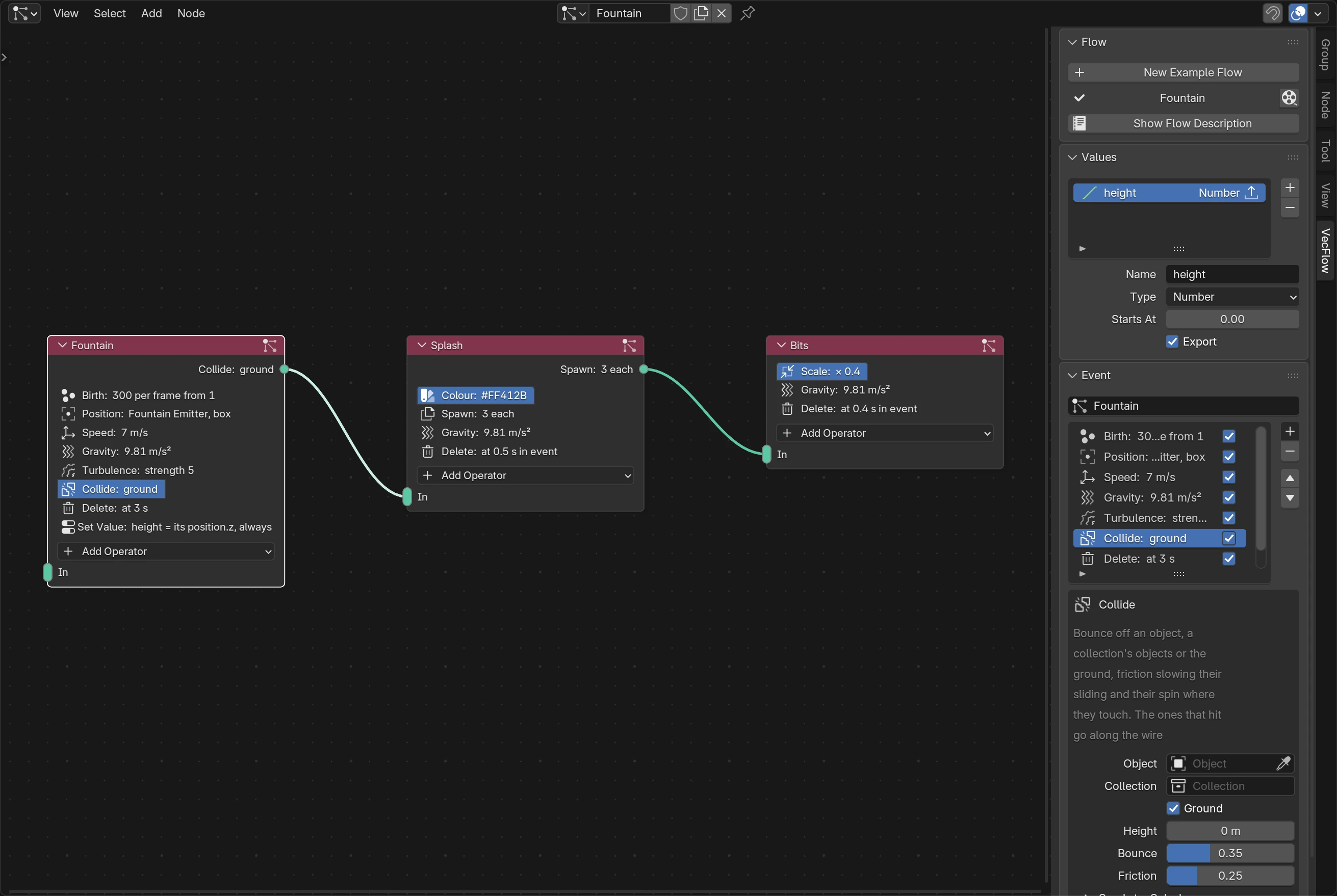
A flow is a node tree of its own kind, edited in Blender's node editor. To open one:
- press Edit Flow beside the Flow field in the sidebar: it shows the flow in a node editor open in this window, or in a new window; or
- turn any editor into a node editor and pick the VecFlow tree type in its header.
In the editor, ShiftA adds an Event. Wires go from an operator's output on one event to the input of another. The editor's own sidebar (N) has a VecFlow tab with three panels:
- Flow: New Example Flow, the simulations that use this flow with their Bake buttons ("No particles object uses this flow" when none does), the flow's problems, and Show Flow Description.
- Values: the values each particle carries, for Set Value, Value Test, Influence and shaders. Folded away at first.
- Event: the selected event's name, its problems, its list of operators with buttons to add, remove and move them, and the selected operator's settings, its Influence, and where its wire Sends to.
The status bar
While a bake runs in this Blender, the status bar at the bottom of the window shows its progress ("Particles: frame 42 of 250") with a stop button, so you can watch it from any workspace. The sidebar shows the same progress in place of the Bake button, with the time left.

Messages from VecFlow (a bake finished, something went wrong) show in the status bar for a moment and stay in Blender's Info log. See Messages for what each one means.