
Sidebar panels, setting by setting
Every setting of every panel in the VecFlow sidebar tab, in the order the panels show them.
This page is made from the add-on itself: a script opens Blender, draws each panel and writes down what it shows, so the names, defaults and descriptions below are the ones in your sidebar. Open the sidebar with N in the 3D Viewport and pick the VecFlow tab.
Each setting says whether changing it needs a new bake. Ones that don't change what's drawn straight away; ones that do mark the bake old ("Changed since the bake") until you bake again.
The sidebar shows the simulation of the selected object: the particles object, or its emitter. Click on empty space and it shows New Simulation instead, to make another.
The pictures show each panel alone with every fold-away section open; in Blender some start folded, such as Attract and Swirl until it has an object.
The simulation's panel
The first panel, headed by the simulation's name, with a + in its header for New Simulation. It always shows, flow or not.
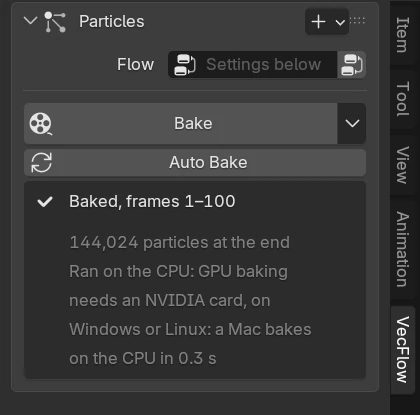
With a flow, Seed shows under the Flow field, and the flow's problems in a box under it, errors in red:
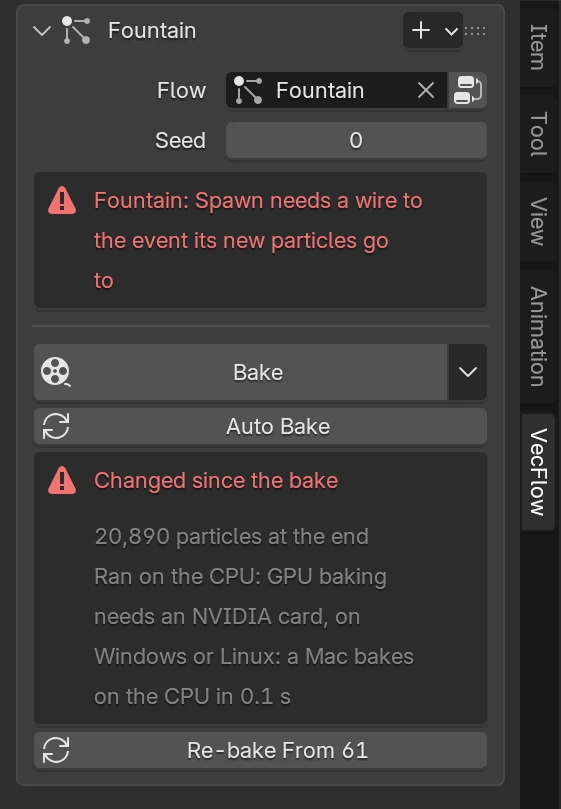
At the top, headed by the simulation's name.
Simulate this flow, made of events in the node editor, instead of the settings below.
Show this flow in a node editor: one open in this window, or a new window.
Shown when the simulation has a flow.
Another number gives another random take on the same simulation.
Shown when the simulation has a flow.
Make a flow that does what these settings do, and simulate it from now on. Edit it in the node editor to add events. Clearing the Flow field goes back to these settings.
Shown when the simulation has no flow.
Simulate the scene's frame range and write it to the cache folder. Blender stays free to use while it runs; its progress and Stop are in the VecFlow panel and the status bar.
The menu beside the Bake button.
- Bake to Frame N: Bake up to frame N only, for a quick look at the start. Continue bakes on from there
- Continue to the End: Keep the frames before N and simulate from there with the settings as they are now, carrying on from the state saved at the frame before
- Re-bake From Frame N: Keep the frames before N and simulate from there with the settings as they are now, carrying on from the state saved at the frame before
- Bake in Background: Bake in a separate Blender so this one stays free to use. It bakes the file as it is when the bake starts
- Free Bake: Delete this object's baked frames from the cache folder
Bake again by itself a moment after any setting changes, up to the frame you're on, so each change shows as you make it. Moving to a later frame bakes on to it. Quickest with Draft.
Bake a quick preview: smoke and liquids at half the detail, an eighth of the cells and particles, the Fast surface, in a fraction of the time. Switch it off and bake again for the final.
Shown when the simulation's flow has smoke or a liquid.
While a bake runs, the Bake button turns into its progress bar with a stop button, and the particle count shows under it. See The bake controls for the menu and the status texts.
Emission
Shown for a simulation without a flow. Where particles are born, how many and how fast.
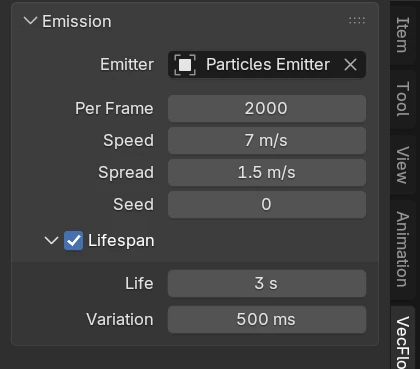
Particles are born from this object and fly along its local Z axis. It can move.
Where on the emitter particles start.
- Box: Anywhere in the emitter's box
- Surface: Evenly over the emitter's faces, flying out of them at Speed
- Volume: Anywhere inside the emitter's mesh, which should be closed
Shown when the emitter is a mesh.
Share of the emitter's own motion, where each particle is born, that it starts with.
Shown when the emitter is a mesh. Hidden when Emit From is Box.
Starting speed along the emitter's Z axis, or out of its faces when emitting from its surface.
Forces
Shown for a simulation without a flow.
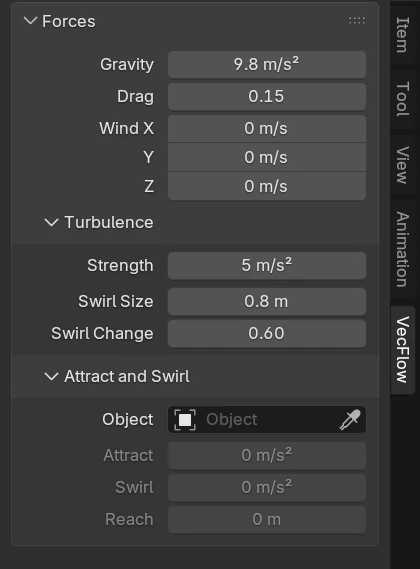
How hard particles are pulled down: 9.81 m/s² is the Earth's, 0 lets them float.
Share of speed lost per second, against the air (which moves with the wind)
Particles are pulled toward this object and swirled around its Z axis. It can move.
Push around the force object's Z axis. Negative turns the other way.
The forces fade out to nothing this far from the object. 0 reaches everywhere.
Collisions
Shown for a simulation without a flow. The section Objects shows how many colliders there are in its title, as in "Objects (2)".
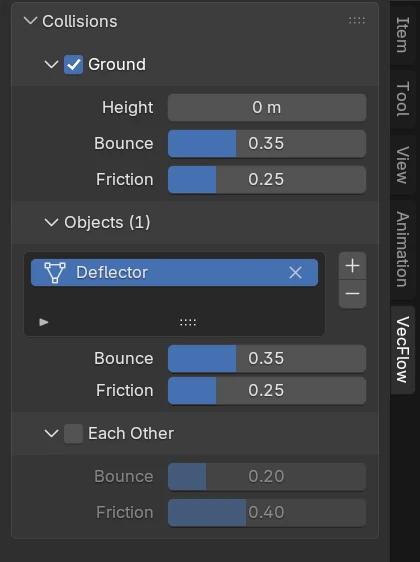
The objects the particles bounce off. Each has its own Bounce and Friction, shown below the list for the one picked.
Add a collider and pick its object. Other selected objects that can collide are added straight away.
Stop colliding with this object.
Particles bump into each other as balls of the sphere radius (times their scale), and pile up on the ground.
How much touching particles hold against sliding past each other. More makes steeper piles.
Size, Spin and Colour
Shown for a simulation without a flow.
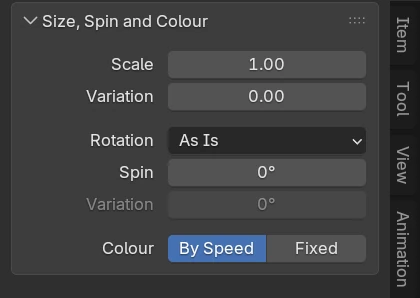
Which way particles' shapes are turned.
- As Is: Shapes keep the way they were modelled
- Random: Each one turned at random
- Along Motion: Each one kept pointing the way it moves
The shape's own axis that points the way it moves.
- X
- Y
- Z
Shown when Rotation is Along Motion.
How fast each particle turns per second, about a random axis.
Hidden when Rotation is Along Motion.
Random difference in spin between particles, either way.
Hidden when Rotation is Along Motion.
How particles get their colour.
- By Speed: From dark blue when still to white hot when fast
- Fixed: One colour, with a little variation
Random difference in each of red, green and blue, either way.
Shown when Colour is Fixed.
Smoke and Fire
Shown when the simulation's flow has a Smoke Source operator. The button in its header applies a smoke and fire look. Render Look shows once the bake has made the smoke object, “name Smoke”.
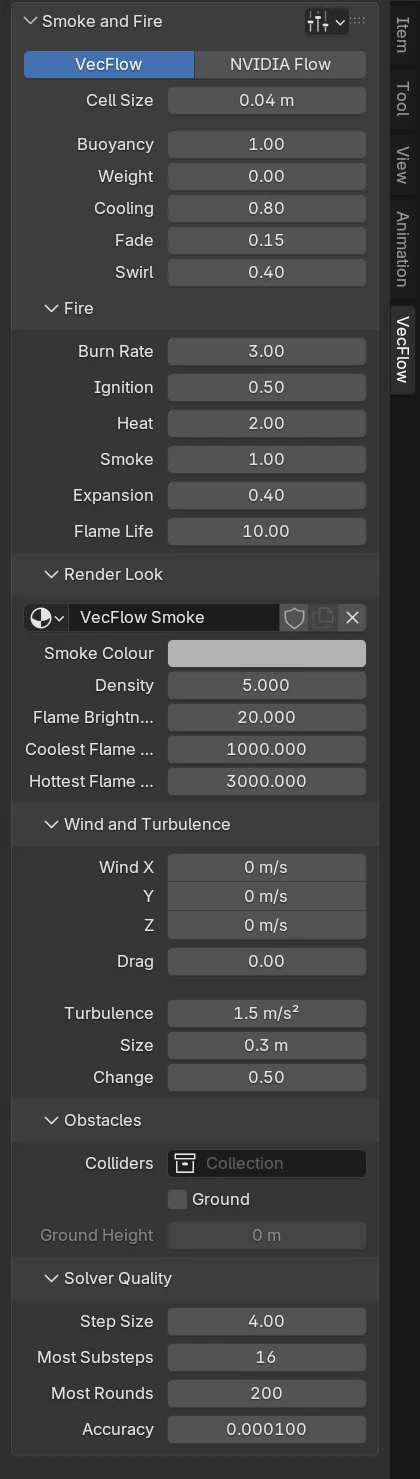
Shown when the simulation's flow has a Smoke Source.
Which solver works the smoke and fire.
- VecFlow: VecFlow's own: the same result on any computer, on the CPU or an NVIDIA card; goes closely round colliders, takes turbulence, and carries on from a state save
- NVIDIA Flow: NVIDIA's real-time gas, on a graphics card (Windows and Linux): fast, but its results depend on the card, it goes round colliders less closely, has no turbulence, and no state saves to carry on from
How big the gas's little cubes are. Half the size is eight times the cells and about twice the substeps: finer detail, much slower. Only cubes near smoke are worked, so a plume costs what it fills.
How sharply the gas carries smoke, flame and its own swirls. Draft bakes use Fast.
- Fast: Everything blended from the 8 cells about where it came from: softest, quickest
- Sharp: Smoke, heat, fuel and flame blended by cubics, so thin flame sheets keep their edges, and the flow reflected halfway through each substep, so small swirls last: about twice Fast's time
- Extreme: As Sharp, carried by a third trace (BFECC): the crispest, and slower again
How hard heat lifts the gas (m/s² for each unit of heat). Negative sinks it.
How hard smoke weighs the gas down (m/s² for each unit of smoke): heavy smoke sinks as it cools.
The share of its heat the gas loses each second: it rises less as it cools.
How strongly the little swirls in the gas are kept up, which the grid would smooth away.
How many times the swirl at the plume's front, where hot gas pushes into cooler air: above 1 rolls the leading edge into curls.
How many times the swirl at the plume's back, where it trails away from the cooler air.
How much harder heat lifts where it stands out from the heat beside it: the plume's edges lift harder than its middle, so they roll up into small curls at finer cells (try 0.5; it mixes the smoke away a little faster). 0 lifts by the heat alone.
How far the swirl keeps to the gas's outer edges, where its smoke and heat end: the edges roll over into billows while the inside churns less (raise Swirl with it). 0 swirls everywhere alike.
Mixing finer than a cell: evens out neighbouring gas sliding past itself, so rising fire doesn't pull into thin lines (try 0.17). 0 is off.
How much burning swells the gas outward: more for fireballs and explosions.
The share of flame that dies down each second: more for short, licking flames.
How much hotter than Ignition fuel must be to burn at the full rate: it burns more and more on the way up. 0 burns at once.
Shown when Solver is VecFlow.
How far burning needs air: 0 burns all the hot fuel, a soft blob; 1 only where fuel and air meet, in thin sheets round the fuel.
Shown when Solver is VecFlow.
How far a flame's heat reaches into the fuel next to it, lighting it, so the burning front creeps through the fuel.
Shown when Solver is VecFlow.
Flames fainter than this don't glow at all, so tongues of flame end crisply instead of in a glowing haze.
Shown when Solver is VecFlow.
The most fuel a cell burns a second, so a dense core burns on for a while and a fireball keeps swelling as it rises. It dims the flame too, which is as bright as what burns: Needs Air keeps the core burning longer without that. 0 for no limit.
Shown when Solver is VecFlow.
Burning makes its smoke only where cooler than this, less up to twice it, none hotter: the soot forms round the hot core, a dark shell the flame shows through. 0 makes smoke wherever it burns.
Shown when Solver is VecFlow.
How much cooling gas shrinks: after a burst swells out, air is drawn back in behind it and the fireball rolls inward. 0 for none.
Shown when Solver is VecFlow.
What the gas's colour changes by as it goes: from Low Colour at Start to High Colour at End. Not with NVIDIA Flow.
- Nothing: The gas keeps the colours its Smoke Sources give it
- Speed: The gas's colour goes by how fast it moves (m/s)
- Heat: The gas's colour goes by how hot it is
- Smoke: The gas's colour goes by how thick its smoke is
How fast the gas takes on its new colour: the share of the way each second. Low keeps the colours its sources gave it for a while.
The material on the output object. The fields below are its main inputs; the rest are in the Shader Editor.
An input of the output object’s material: it changes the render, not the bake.
An input of the output object’s material: it changes the render, not the bake.
An input of the output object’s material: it changes the render, not the bake.
An input of the output object’s material: it changes the render, not the bake.
An input of the output object’s material: it changes the render, not the bake.
An input of the output object’s material: it changes the render, not the bake.
An input of the output object’s material: it changes the render, not the bake.
An input of the output object’s material: it changes the render, not the bake.
An input of the output object’s material: it changes the render, not the bake.
Set the Flame Colour ramp to these colours, to change further by hand.
An input of the output object’s material: it changes the render, not the bake.
An input of the output object’s material: it changes the render, not the bake.
An input of the output object’s material: it changes the render, not the bake.
An input of the output object’s material: it changes the render, not the bake.
An input of the output object’s material: it changes the render, not the bake.
How wide a fold of the flame the bake looks for (cells either side), for the look's Crease Masking: more finds broader folds, and lets dips narrower than half of it be.
The share of the way to the wind's velocity the gas goes each second (0: no wind, still air doesn't slow it)
More stirring for each unit of heat: with Turbulence at 0, only hot gas is stirred.
What the gas is stirred with.
- Value: A push this way and that, part of which the gas's pressure takes back out
- Curl: Swirls that don't squeeze the gas, so all of them stay in it
- Cellular: Swirls gathered in cells, sheared where two meet: billowy, and about four times Curl's time
How far down the stirring reaches: 0 stirs at its Size alone; 1 adds smaller and smaller swirls down to a few cells, each weaker, so finer cells get finer detail.
Small swirls a few cells across, only where it burns, shredding the flame into licks and tendrils; this much for each unit of flame.
How big the disturbance's swirls are, in cells, so they stay just above what the cells can show at any cell size.
Objects the gas goes round, and is pushed by as they move: every object in this collection that has a surface. Closed meshes work best: inside is solid.
How many steps NVIDIA Flow takes each frame: more follows fast gas better, and is slower.
Shown when Solver is NVIDIA Flow.
The most cells the fastest gas may go in one substep: substeps get shorter to keep to it. Less is sharper and slower.
Shown when Solver is VecFlow.
The most substeps the gas takes in a step, however fast it goes.
Shown when Solver is VecFlow.
The most rounds of solving for the gas's pressure each substep.
Shown when Solver is VecFlow.
How closely the pressure solve keeps the gas from squeezing, as a share of how much it would at the start of the solve. Less is steadier and slower.
Shown when Solver is VecFlow.
Liquid
Shown when the simulation's flow has a Liquid operator. Render Look shows once the bake has made the surface object, “name Liquid”. Whitewater as Foam shows when the flow has a Whitewater operator.
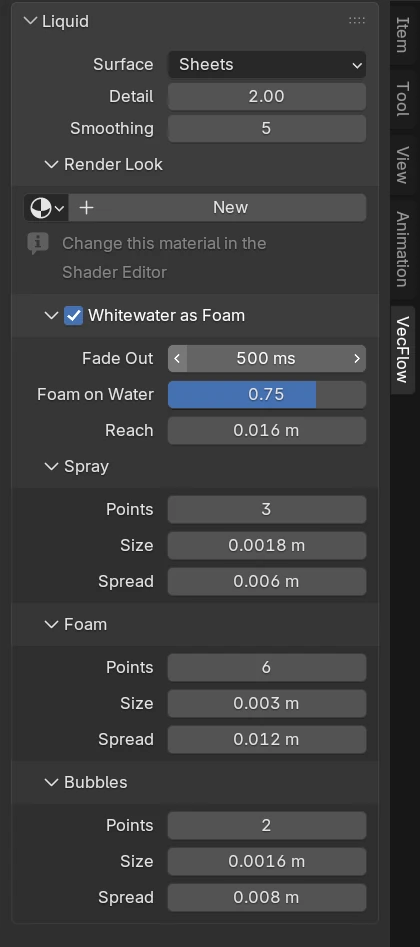
Shown when the simulation's flow has a Liquid.
How a liquid's surface mesh is found from its particles.
- Fast: A round kernel at each particle, the mesh smoothed evenly: the quickest. Bumpy where particles are few, and heavy smoothing shrinks drops
- Smooth: The same surface, the smoothing weighted by how many particles are about each point: drops and rims keep their shape under heavy smoothing. A tenth more work than Fast
- Sheets: Kernels stretched along the particles about them and squeezed across: flat sheets, smooth streams and round drops at lower particle counts. About twice the work of Fast
- Filled: Sheets, with pinholes the particles nearly bridge closed. Merges drops that pass within a grid cube of each other
How fine a liquid's surface mesh is: grid cubes across the gap between its particles. Twice as fine is about four times the faces.
How wide the bumps are that come off a liquid's surface, in gaps between its particles: 1 takes off the lumps clumps of particles leave; 2 to 3 for thick, glassy liquids such as honey; 0 keeps every lump, for pulp or jam. Shapes twice as wide keep their form and thin streams stay whole. Wider is slower to mesh (about the square)
Rounds of smoothing a liquid's surface mesh gets, which take off the ridges its grid leaves.
How wide the creases and wrinkles are that fill in on a liquid's surface, in gaps between its particles: 1 the small ones particles leave; about 3 for honey, whose folds melt together; 0 keeps every crease, for pulp or jam. Drops this close together join.
How far the smoothing may sink a liquid's surface into the one its particles make, in gaps between them: 0 as far as it likes; 0.25 keeps drops and thin sheets their size while the lumps still come off, so Smoothness can go higher.
How far the smoothing may swell a liquid's surface out of the one its particles make, in gaps between them: 0 as far as it likes; 1 keeps drops apart and creases from filling wider than that.
Moves a liquid's surface out (or in, below 0) by this much of the gap between its particles: fuller or leaner, without changing the bake.
Leaves out of the surface the particles with fewer neighbours than this, so splash and spray aren't meshed (show them as whitewater or points). 0 meshes all.
Leaves out of the surface the particles further from their neighbours, on average, than this many gaps between particles: a sheet stretched thinner than a particle or a spray cloud, which the surface would paint as a film, shows as Splash Drops instead. 0 keeps them; about 1.4 for a splash's crown (packed liquid reads about 1.1)
Leaves out of the surface the liquid one particle thick: a sheet or a thread the solver can't thin any further, which water that thin tears into drops, so a splash's crown shows as Splash Drops rather than a film. Off for honey or paint, whose sheets hold.
Shows the particles Core Only, Loose Drops and Tear Sheets leave out as drops this big (their radius, in gaps between particles) in the surface's material, about 0.6 for water's. 0 leaves them out.
Brings the surface to the colliders and rigid bodies the liquid wets (a body as the mesh it was made from, not its hull), across the gap the solver keeps, and a little into them so no seam shows: water against its glass, round a body in it.
How far from an object the surface is brought to it, in gaps between particles. The water climbs that far up a wall it touches, as a meniscus does.
How far into an object the surface goes, in gaps between particles, so the join is hidden inside it. Below the solver's gap (about 0.2) the water stops short of it.
Values to put on the surface's vertices, by name, separated by commas: each vertex gets the particles' about it, as the attribute vf_<name> (a vector's as vf_<name>_x, _y, _z), for its material.
A surface for each liquid event, meeting where they touch, each its own object and material: oil on water, two inks.
Leave out the surface outside the scene camera's view (and Clip Margin past it): faster meshing, smaller files. The cut is closed.
The material on the output object. The fields below are its main inputs; the rest are in the Shader Editor.
An input of the output object’s material: it changes the render, not the bake.
Show whitewater as studios render it: each particle a few tiny points, mostly small, shrinking as it nears its end; spray glossy, foam soft and lit through, bubbles faint. Off, it shows as other particles do.
Shown when the flow has a Whitewater operator.
Points shrink over this long before the Delete in their event takes them, so none pops out.
Shown when the flow has a Whitewater operator.
How white the liquid's surface turns where foam lies thick on it, so foam reads as patches. Needs Whitewater as Foam, and the liquid in VecFlow's water (or a material that reads the surface's "foam" attribute). 0 leaves it clear.
Shown when the flow has a Whitewater operator.
How far from foam's points the surface turns white, fading out to there.
Shown when the flow has a Whitewater operator.
Points shown for each particle of spray.
Shown when the flow has a Whitewater operator.
Radius of the biggest points; most are smaller, down to a third of it.
Shown when the flow has a Whitewater operator.
How far about its particle each point lies.
Shown when the flow has a Whitewater operator.
Points shown for each particle of foam.
Shown when the flow has a Whitewater operator.
Radius of the biggest points; most are smaller, down to a third of it.
Shown when the flow has a Whitewater operator.
How far about its particle each point lies: along the water, and a quarter of it up and down.
Shown when the flow has a Whitewater operator.
Points shown for each bubble particle.
Shown when the flow has a Whitewater operator.
Radius of the biggest points; most are smaller, down to a third of it.
Shown when the flow has a Whitewater operator.
How far about its particle each point lies.
Shown when the flow has a Whitewater operator.
Display
How the bake is drawn and rendered. Nothing here needs a new bake.
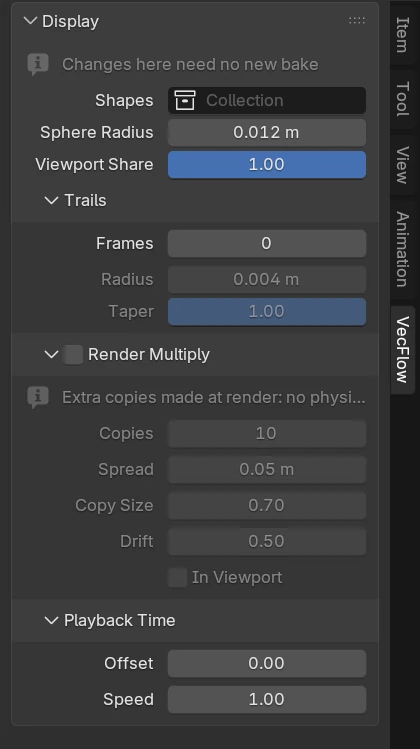
Show each particle as one of this collection's objects, picked at random, turned and scaled with it. Their materials can read the particle's colour with an Attribute node (Instancer, vf_color). Empty shows spheres.
Particle size. Changes without re-baking, unless the particles bump into each other or are rigid bodies.
Frames each particle trails back over, as a smooth curve through where it was (0 for none). Read from the baked frames, so it changes without re-baking. Its points have "vf_trail": 0 at the particle to 1 at the trail's end, for shaders.
Render-time extra detail: each particle shows as several, the copies scattered round it and moving with it. They are made as Blender shows the frame, not baked, so they don't collide with or push anything: for sparks, dust, snow and spray, not sand, rigid bodies or liquid.
How far from its particle a copy can be (most are nearer in). Keep it small near floors and walls: the copies go through them.
The copies' size, to their particle's (each a little smaller still, at random)
Frames into the bake it shows from its start: it plays this far ahead (with the particles' meshes and liquid). Changes without re-baking, and can be keyframed.
How fast the bake plays: 0.5 is slow motion, 0 holds a frame (set by Offset), -1 plays it backwards. Between baked frames particles move along their velocity, so slow motion of fast, curving or colliding motion shows straight steps. Motion blur follows the speed. Keyframe it for a ramp: the frames played are the speed added up.
Bake Settings
Folded away at first. Where and how the bake runs.
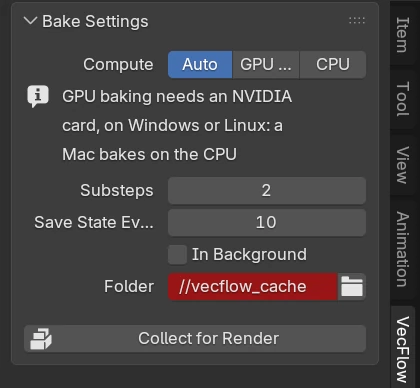
Where the bake runs. GPUs are NVIDIA cards (RTX 20 series and newer, with a driver of the 580 series or newer) on Windows and Linux.
- Auto: On the GPU when the flow can run there, else on the CPU (the panel says why)
- GPU Only: On the GPU or not at all: a flow that can't run there doesn't bake, and says why
- CPU: On the CPU
The GPU to bake on.
Shown when the computer has two or more NVIDIA GPUs. Hidden when Compute is CPU.
Where a liquid's surface is meshed each frame. The mesh is the same wherever; on another GPU the bake's GPU holds no surface memory and the solve never waits for a mesh.
- Auto: The liquid's surface meshed on another GPU than the bake's when there is one, else on the bake's GPU beside the solve, else on the CPU
- Same GPU: On the GPU the bake runs on, beside the solve (on the CPU when the bake is)
- GPU: On the GPU picked below
- CPU: On the CPU
Hidden when the computer has no usable NVIDIA GPU.
The GPU to mesh the liquid's surface on.
Shown when Surface On is GPU. Hidden when the computer has no usable NVIDIA GPU.
How many GPUs solve a liquid or smoke. The result is the same to the bit however many share it; each card holds its part, so bigger ones fit.
- Auto: A big liquid or smoke solved over every usable GPU of this computer, with the bake's GPU (about 130,000 particles or 256 blocks of smoke a card and up; smaller ones stay on the bake's GPU)
- This GPU: The liquid and the smoke solved on the bake's GPU alone
- Pick: The liquid and the smoke solved over the GPUs ticked below, with the bake's GPU
Shown when the computer has two or more NVIDIA GPUs. Hidden when Compute is CPU.
The GPUs to solve the liquid and the smoke over, with the bake's.
Shown when the computer has two or more NVIDIA GPUs, and Cards is Pick. Hidden when Compute is CPU.
Frames between state saves, which a bake can carry on from (the last frame is always saved). Each one takes about as much disk as a frame of the cache; with smoke, several frames' worth, as its gas is saved in full.
Bake in a separate Blender so this one stays free to use. It bakes the file as it is when the bake starts.
Where baked frames are written. // is the folder of the .blend file.
Save a copy of this file into a folder with the bakes it plays beside it, so the folder renders on another machine, even one without VecFlow.
Values at This Frame
Shown, folded away, once a bake has values (made by Set Value in a flow) that are exported. For each value it lists the Lowest, Mean and Highest over the particles at the current frame; a yes/no value shows how many are yes. It shows "This frame isn't baked" outside the baked frames. It has no settings.
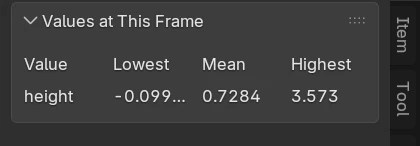
Simulations in the Scene
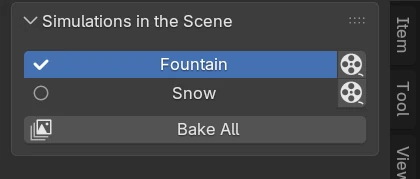
Shown when the scene has a simulation. One row for each: its name (click it to select it), where its bake stands as an icon (not baked, current, or changed since the bake), and its Bake button, or its progress while it bakes. With more than one simulation, Bake All bakes every one, and a stop button stops them all while any is baking or waiting. See Several simulations at once.